For now the scene has only been a black void. Let's add some scenery.
Getting the models
Hymn to Beauty supports GLTF models. We will be using models from the GLTF sample models repository. Clone the repository using git or download it as a zip and extract it.
Adding the GLTF model to the hymn
We will use the Sponza model. It's in 2.0/Sponza. Copy the GLTF folder into your hymn's Resources folder. To find where your hymn is stored, see Saving a hymn . Rename the folder to Sponza to make it more descriptive.
In the editor, click on the Refresh button. The Sponza folder will now be shown in the resource list.
Importing
To use the GLTF model in Hymn to Beauty, it first has to be imported into an internal format. Click on the Sponza folder to expand it. Scroll down until you see the Sponza.gltf resource and click on it to open it. A window will open allowing you to edit the resource.
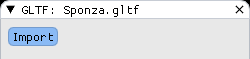
Click on the Import button. This will import the GLTF model into an internal format and create a scene that can be instantiated. You need to click the Refresh button again for the changes to show up in the resource list.
Instantiating the imported scene
Open the default scene. Right-click on the Root entity and select Instantiate scene. Select the newly created Sponza scene.
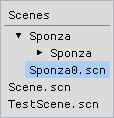
The Sponza model has now been added to the scene.
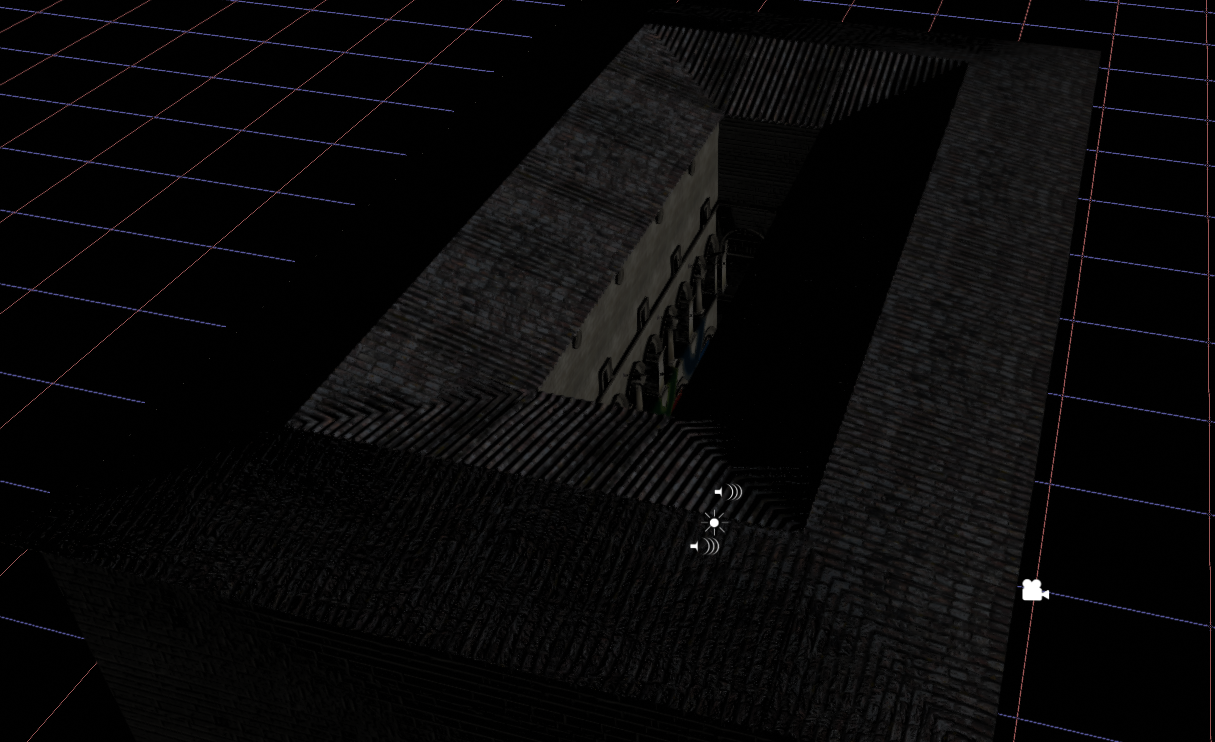
Why so dark?
There is currently only the default sun light in the scene. It also has an ambient coefficient of 0. The ambient coefficient is how much ambient lighting there should be. That is, how bright objects that are not being lit by any lights should be. You can edit the ambient coefficient by editing the Sun entity and increasing the ambient coefficient in the Directional Light component.