Projects in Hymn to Beauty are called hymns.
Creating a hymn
Let's begin by opening the editor.

This is the editor of Hymn to Beauty. This is what you will use to create your hymns. But currently, there is no hymn open, so let's create one. You do that by clicking on the File menu and selecting New Hymn.
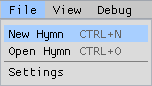
A dialog window will pop up, asking you to enter the name of the hymn. If you have already created a hymn, it will also show a list of all the existing hymns.
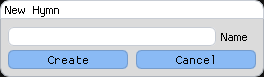
Enter a name, for example MyFirstHymn, and click on the Create button. This will create a new hymn with the given name and open it.
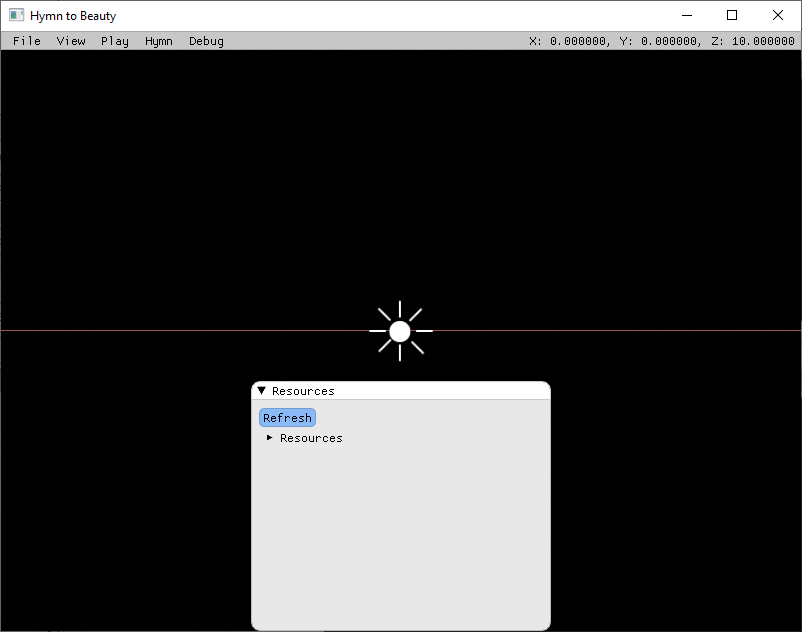
A number of things happened, such as a resource window popping up and more options being available in the menu bar at the top of the window. These will be covered in later sections. For now, let's save the hymn we just created.
Saving a hymn
Click on the File menu and select Save Hymn.
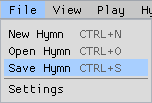
The hymn will now be saved. You can now close the editor.
Where is my hymn saved?
| Operating System | Path |
|---|---|
| Windows | %APPDATA%\Hymn to Beauty\Hymns |
| Mac | ~/Library/Application Support/Hymn to Beauty/Hymns |
| Linux | ~/Hymn to Beauty/Hymns |
Opening a hymn
Open the editor again. This time, instead of creating a new hymn we will open our previous one. Click on the File menu and select Open Hymn.
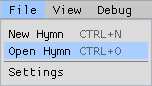
A dialog window will pop up. It will show all of the available hymns.
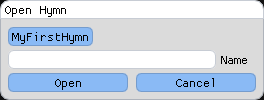
Click on your hymn and then on the Open button. Your hymn will open.