You have now created a 3D scene. Let's test playing it. To test a scene, press F5.
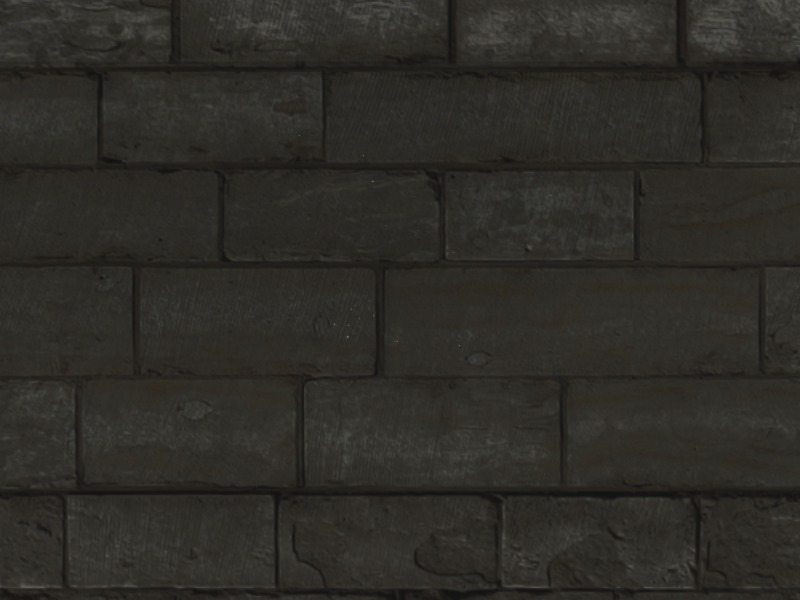
Currently, the hymn consists of a camera facing a wall. Not the most exciting. We could move the player entity in the scene to get a more exciting location, but even more exciting would be allowing the player to control the camera. This is done through scripting.
To stop playing and return to the editor, press F5 again.
Creating a script
To create a new script, right click on the Resources folder in the resources list and select Add script.
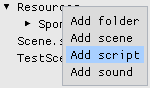
A new script will be created. Click on it. A window will open allowing you to edit the script.
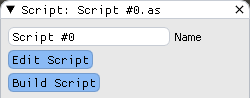
For now let's rename the script to something more descriptive. In the textfield enter FirstPersonController and press Enter.
Configuring the text editor
Currently, if you press the Edit Script button nothing will happen. This is because Hymn to Beauty does not contain a text editor to edit scripts. Instead, you will use whatever editor you prefer. Notepad++ or Visual Studio Code are good options but any text editor will do. When you press the Edit Script button, Hymn to Beauty will open the script in your text editor of choice. But before it can do that, you need to tell it what text editor to use. Close Hymn to Beauty.
Windows
Open %APPDATA%\Hymn to Beauty\Settings.ini in a text editor. In the [Scripts] section there is an entry called Text Editor. Set this entry to the full path to the text editor, for example:
[Script]
Text Editor = C:\Program Files\Notepad++\notepad++.exe
Mac and Linux
Opening an external text editor directly from Hymn to Beauty is currently not supported on Mac and Linux. Instead, you will have to open the scripts manually from the hymn's resource folder.
Editing a script
Open Hymn to Beauty, open the script and click on Edit Script. If you configured the path to the text editor correctly, your script will now open in your text editor (Windows only).
Understanding the example script
When you created a new script, an example script was created.
class Default {
    Hub @hub;
    Entity @self;

    Default(Entity @entity){
        @hub = Managers();
        @self = @entity;

        // Remove this if updates are not desired.
        RegisterUpdate();
    }

    // Called by the engine for each frame.
    void Update(float deltaTime) {

    }
}
This scripts defines a new class. The class name has to be the same as the name of the script, in this case FirstPersonController. But currently it is Default, so change all instances of Default to FirstPersonController. Now let's break down what the script does, bit by bit.
class FirstPersonController {
    ...
}
This defines the class, all its methods and properties.
    Hub @hub;
    Entity @self;
This are member variables. The @ means that they are references.
    FirstPersonController(Entity @entity){
        ...
    }
This is the constructor. This method will be called when the entity that the script is attached to is created. This is the only method that the engine will call. If you want to get other calls from the engine (such as an Update function called every frame) they have to be registered.
The @entity parameter is the entity to which the script is attached.
@hub = Managers();
This gets the manager hub. From this hub, you can access the managers, such as the debug drawing manager or the physics manager. We won't use those in this script.
@self = @entity;
This stores the entity into a member variable so that we can use it later.
        // Remove this if updates are not desired.
        RegisterUpdate();
This tells Hymn to Beauty that we want to have our Update method called every frame.
    // Called by the engine for each frame.
    void Update(float deltaTime) {

    }
This is the update method. If it has been registered through RegisterUpdate, it will be called every frame. This is where we can write our game logic.
The deltaTime parameter is the time elapsed since the last frame in seconds. Whenever you move anything in the update function, you should always multiply the speed with the delta time to keep the movement consistent regardless of the frame rate. Otherwise the game will move at different speeds depending on whether it's rendering at 60 fps, 30 fps or something else.
For now, to test it out, let's just move the entity along the x-axis.
    void Update(float deltaTime) {
        self.position.x += deltaTime;
    }
Building a script
Whenever you play the hymn, all scripts will be built automatically, so there is no need to build scripts manually. However, doing so can be useful as it can tell you whether a specific script can be built successfully or has errors in it. To test build a script, click the Build Script button. The button will turn green if the script built successfully.

If the script caused an error, the button will be red. You need to fix the error and then try again.

Assigning a script to an entity
Like all other functionality, entities gain scripting functionality through a component: the Script component. Open the scene and edit the Player entity.
Add a Script component by clicking Add component and selecting Script.
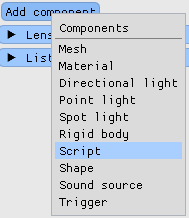
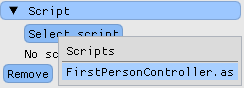
In the script component, click the Select script button and select the first person controller script.
Test the scene again by pressing F5. The camera will now be moving to the right.